How to Stop Notification Burnout(A Practical Guide to Reclaiming Your Focus)
Every app you use is designed to interrupt you. Here is how to take back control of your phone, Slack, and inbox without going off the grid.
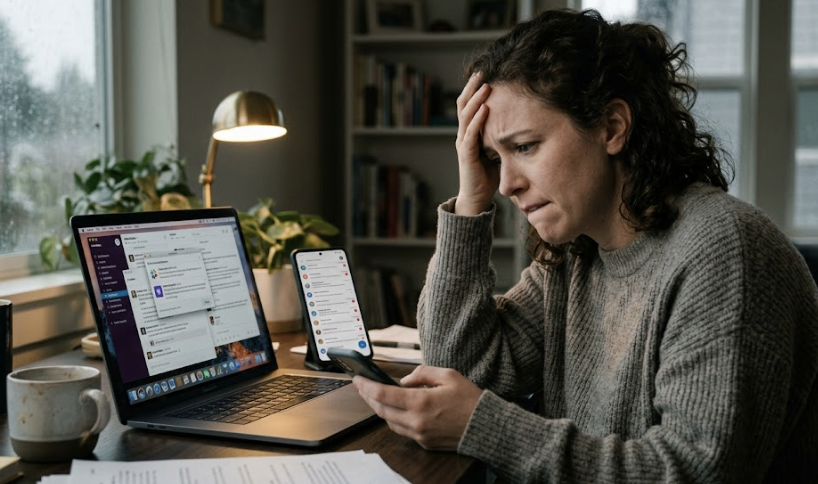
This thread on r/productivity blew up for a reason:
Hundreds of replies, all describing the same loop: a Slack ping pulls you out of deep work, an email notification drags you somewhere else, then your phone buzzes with a text that could have waited until tomorrow. By 3 PM you have touched twelve things and finished zero.
Every tool you use is designed to interrupt you. Notifications are the default, and silence is something you have to actively build.
This post breaks down how to reclaim your attention across your phone, Slack, and email, with specific strategies pulled from the thread and from what we have seen work firsthand.
In this guide:
- 1. Why notifications are broken by default
- 2. Phone: the nuclear option (and why it works)
- 3. Slack: silencing the firehose without missing what matters
- 4. Email: the label strategy that actually scales
- 5. The "Operating Manual" trick from a CEO
Why Notifications Are Broken by Default
Every app wants to be the most important thing on your screen
Every app you install turns on notifications by default. That is not an accident. App developers measure engagement, and nothing drives engagement like a red badge or a banner that pulls you back in. The result is that your phone, your laptop, and your browser are all competing for your attention at the same time.
No amount of discipline fixes this. You need to change the defaults. Decide, once, how each channel is allowed to interrupt you, and then enforce that decision with settings instead of willpower.
Phone: The Nuclear Option
Turn off text notifications entirely
The best move is the simplest one: turn off notifications for all text messages entirely. Vibrate counts as on. "Deliver quietly" counts as on. You want zero interruptions from texts.
The reasoning is simple. The vast majority of text messages are not urgent. Group chats, memes, "sounds good" replies, someone sharing a link you will never click. None of that needs to interrupt whatever you are doing right now. You will still see every message when you open the app. You just stop letting other people's timing dictate yours.
The key move: actively tell the people you work with to just call you if something is actually urgent. A phone call is a natural urgency filter. Nobody calls unless it matters.
Pro tip: If you silence text notifications, you will probably want to silence calls from unknown numbers too. Recent versions of iOS have an incredible feature called "Silence Unknown Callers" that goes a step further. Instead of just sending unknown numbers to voicemail, it asks the caller to identify themselves before your phone even rings. That means spam calls never reach you, but a real person with a real reason to call can still get through. Find it in Settings → Phone → Silence Unknown Callers.
This combination (texts silent, unknown calls screened, known contacts ring through) means the only things that interrupt your phone are calls from people you actually know. Everything else waits until you are ready.
Slack: Silencing the Firehose
You cannot mute everything, but you can mute most things
Slack is harder than your phone because work conversations have a way of feeling urgent even when they are not. A message in #general about the new coffee machine does not need your attention. Neither does the fifteenth message in a thread you were tagged in three days ago.
The strategy has two parts:
1. Mute aggressively. Go through your channel list and mute every channel that is not directly relevant to your daily work. You can still check them when you want to. The difference is that they stop pinging you every time someone posts.
2. Tell your people how to reach you. This is the part most people skip. Send a quick message to the 3-5 people you work with most closely: "If something is time-sensitive, DM me or call me. I have most channels muted so I check them in batches." You will be surprised how well people adapt when you just tell them.
You are not disappearing from Slack. You are just checking it on your terms, twice or three times a day, instead of reacting to it 47 times.
Email: Labels Are Your Best Friend
Skip the inbox for everything that does not need you right now
Email is where most people lose the most time, and it is also where the fix is the most straightforward. The strategy: make it so that anything not labeled "response needed" or "urgent" skips your inbox entirely.
That means newsletters, shipping confirmations, marketing blasts, meeting invites, CC'd threads, and automated notifications all go somewhere else. Everything is still there when you want it. You just batch-review it at the end of the day, or mid-day, or whenever works for you.
The only emails that hit your inbox in real-time are the ones that actually require your attention. Everything else waits.
You can set this up manually with Gmail labels and filters, but it takes time and constant maintenance. Every new sender, every new newsletter, every new automated system requires a new rule. Tools like Superhuman, Fyxer, and Tiko Mail automate this entirely. They categorize incoming email using AI, so the sorting happens without you lifting a finger.
RelatedHow to Mark All Gmail as Read(And Why It Doesn't Actually Fix Your Inbox)How Tiko Mail Handles This Automatically
Connect your Gmail or Outlook. Tiko sorts every incoming email into one of 12 categories before you even see it.
Respond, FYI, Notifications, Marketing, and More
Every email gets a label: Respond, Follow-up, Awaiting, FYI, Done, Notifications, Meetings, Marketing, Shipping, Travel, Newsletters. You only get notified about emails labeled Respond or Follow-up. Everything else skips the noise.
Auto-Drafted Replies
For emails that need a response, Tiko drafts a reply in your voice. Open Gmail, review the draft, tweak if needed, send. Your average response time drops without extra effort.
Daily Digest Instead of Constant Checking
Get a single daily summary of what happened in your inbox. Who emailed, what was important, what is still waiting. Check it once instead of refreshing your inbox every 20 minutes.
2 weeks free, no credit card needed
The "Operating Manual" Trick
One document that eliminates 90% of communication confusion
Here is one of the best ideas we have seen for managing notifications at a team level. A CEO we know created what he called an "Operating Manual" for himself. It was a short document, shared with his entire team, that spelled out exactly how he communicated:
- Slack channel message: I will see it within 24 hours. Do not expect a same-day reply.
- Slack DM: I will reply within a few hours during business hours.
- Email: Same-day reply for anything important. Batch everything else at end of day.
- Phone call: Only for genuinely urgent things. I will always pick up.
It also spelled out what he expected from his team in return: how quickly they should reply on each channel, and which channel to use for what type of message.
It feels overly formal until you see the effect: it removes ambiguity. Nobody wonders "should I Slack him or email him?" Nobody panics when a Slack message goes unanswered for two hours. Everyone knows the rules, so everyone can actually focus on their work without guessing whether they are being rude by not replying instantly.
Try this: You do not need to be a CEO to create your own operating manual. Write a few bullet points about how you prefer to be reached, share it with your team or your manager, and see what happens. Most people will respect it, and a few will probably write their own.
Putting It All Together
The thread that inspired this post had hundreds of people describing the same problem. Constant pings, fractured attention, the feeling that you are always behind. The fix is not complicated, but it does require you to make a few deliberate choices:
- Phone: silence text notifications. Tell people to call for anything urgent. Screen unknown callers.
- Slack: mute channels aggressively. Tell your key people how to actually reach you.
- Email: set up a system where only important emails hit your inbox. Batch everything else.
- Team: write an operating manual so everyone knows the rules.
None of this requires you to go off the grid or become unreachable. You are just choosing what gets to interrupt you and what has to wait.
Your Choice
Option 1: Keep Getting Pinged
Leave every notification on, check email 47 times a day, and wonder where the afternoon went.
Option 2: Take Back Your InboxRecommended
Let Tiko Mail sort your email automatically so only the messages that matter reach you in real-time. Everything else gets batched into a daily digest.
- ✓ AI-powered email categorization
- ✓ Auto-drafted replies in your voice
- ✓ Daily digest instead of constant checking
Free trial. 30 seconds to set up. No credit card required.