


How to Create a New Folder in Gmail(And the 1-Click Trick to Actually Organize Your Inbox)
You are probably staring at your Gmail screen right now, searching for a "New Folder" button. You are not crazy. It is not there.
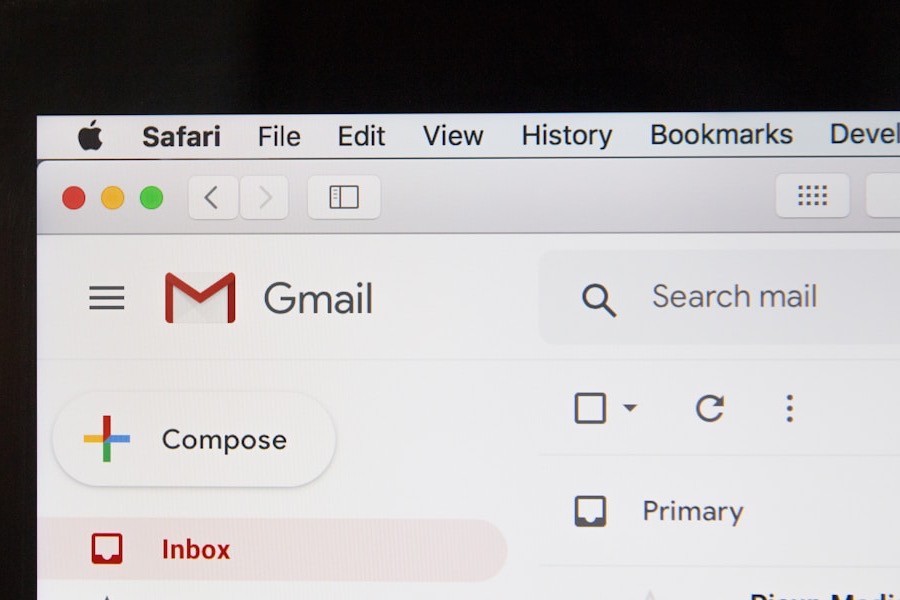
Google built Gmail using a system called Labels, not folders. While they function similarly, this slight difference in terminology is why you cannot find what you are looking for.
In this guide, we will show you the exact steps to create a "folder" (label) in Gmail.
But more importantly, we are going to show you why manually sorting your emails is a trap, and how to put your inbox on autopilot.
In this guide:
- 1. How to create a "Folder" (Label) in Gmail step by step
- 2. Why manual organization is a trap costing you 60 hours a year
- 3. How to automate your inbox so you never sort another email
Part 1: How to Create a New Folder (Label) in Gmail
The Manual Method
If you simply want to set up a manual filing system, here is how you do it on a desktop browser.
Note: You usually need to be on a desktop computer.
- Open Gmail on your computer.
- Look at the left-hand menu panel (where your Inbox, Sent, and Drafts are).
- Scroll to the very bottom and click the drop-down arrow labeled "More."
- Scroll down again and click "Create new label" (the plus icon).
- Name your folder (e.g., "Client Invoices" or "Travel Receipts").
- Click Create.
Your new "folder" will now appear in the left sidebar. To put an email inside it, you have to click the email, drag it across the screen, and drop it into the label.
But before you start making 50 different labels, ask yourself a question: Do you really want to spend your afternoon playing file clerk?
Part 2: The "Manual Organization" Trap
Why Folders Are Costing You Time
It is easy to fall victim to the Framing Effect. When you think about dragging an email into a folder, your brain tells you: "That only takes 3 seconds. It is no big deal."
But let's look at the real data:
If you spend just 5 seconds reading, deciding, and dragging each email into its proper folder, that adds up to 10 minutes a day.
Over a year, that is 60 hours of your life spent simply moving digital paper from one pile to another.
You don't need a better way to create folders. You need a way to stop organizing altogether.
The "New Opportunity"
Most people think the solution to a messy inbox is "better organization." But you don't actually want folders. You want an inbox that organizes itself. This is why we built Tiko Mail.
Smart Auto-Labeling
Instead of you dragging emails, Tiko Mail's AI reads each message and labels it automatically (Respond, Follow-up, FYI, Newsletters, Meetings, and more) before you even log in.
Instant Prioritization
You don't need to spend hours writing complex "if/then" rules or filters in Gmail's settings. Tiko Mail reads every email and labels it by priority, so you know at a glance what needs a response and what is just noise.
The Clean Slate
Open your inbox and immediately see which emails need a response, which are just FYI, and which are notifications you can ignore. No dragging, no sorting, no manual labor.
2 weeks free, no credit card needed
Your Choice
Option 1: The Sunk Cost Path
Go back to step one, create your manual labels, and commit to dragging and dropping emails for the rest of your career. The Sunk Cost Fallacy keeps you stuck in the old way.
Option 2: Let the Software WorkRecommended
Let Tiko Mail do the heavy lifting. Stop being a file clerk for your own life and start being the CEO of your inbox.
- ✓ Instant labeling and prioritization
- ✓ Automated draft replies
- ✓ Privacy focused
Stop sorting. Start automating.