
How to Delete Labels in Gmail(And Why You Should Stop Organizing Manually)
If you are reading this, your Gmail sidebar is likely a cluttered mess of colorful tags, forgotten projects, and old folders.
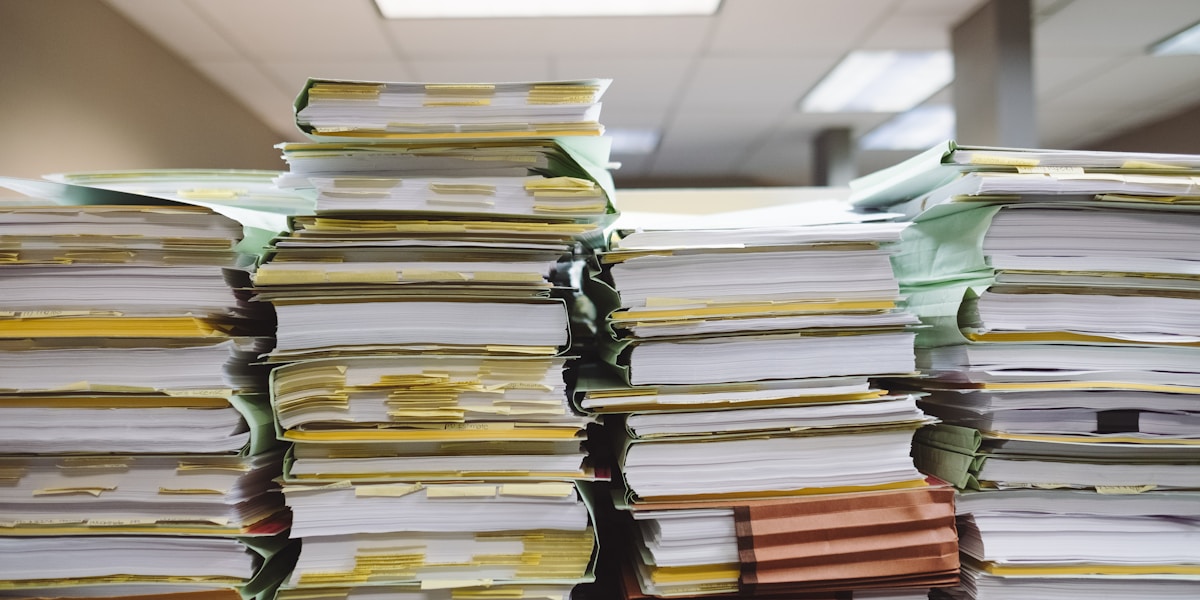
You probably spent hours building the "perfect" organization system, but now, it has become overwhelming. You just want to burn it down and start over.
Below, we will show you exactly how to delete those old labels in Gmail.
But more importantly, we are going to expose why relying on manual labels is a massive trap, and how to put your inbox organization on autopilot so you never have to "clean up" your folders again.
In this guide:
- 1. How to delete a label in Gmail (the manual purge)
- 2. Why your label system broke: the "Digital Janitor" trap
- 3. How to eliminate the need for manual labels entirely
Part 1: How to Delete a Label in Gmail
The Manual Purge
If you are ready to start clearing out the clutter, here is the step-by-step process for deleting a label on a desktop browser.
- Open Gmail on your computer.
- Look at the left-hand menu panel where your labels are listed.
(You may need to click "More" to see all of them.) - Hover your mouse over the label you want to delete.
- Click the three vertical dots (Options icon) that appear next to the label name.
- In the drop-down menu, click "Remove label."
- A confirmation pop-up will appear. Click Delete.
(Note: Deleting a label does not delete the emails that were inside it. Those emails will simply return to your main inbox or archive without the tag.)
You have successfully deleted one label. Now, repeat that process for the other 40 labels clogging up your screen.
Part 2: The "Digital Janitor" Trap
Why Your System Broke in the First Place
Why do you have so many useless labels in the first place?
Because you fell for the Manual Organization Trap.
We convince ourselves that if we just create the perfect folder structure, we will finally achieve Inbox Zero. But manual organization requires manual upkeep. Every time a new email arrives, you have to spend 5 to 10 seconds deciding where it goes, dragging it, and dropping it.
When things get busy, you stop filing. The emails pile up. The labels become obsolete. And suddenly, you are spending your Friday afternoon playing "Digital Janitor," deleting labels you created two years ago.
You don't need a better way to manage your labels. You need a way to eliminate the need for them.
The New Opportunity (Enter Tiko Mail)
Most productivity experts will tell you to "build better habits." That rarely works. You should not have to work on your inbox. Your inbox should work for you. We built Tiko Mail to replace the old mechanism of manual sorting with an entirely new infrastructure that organizes itself.
Smart Auto-Sorting
You should not have to build complex filters or drag emails around. Tiko Mail's algorithm inherently understands patterns (like identifying receipts, travel updates, or newsletters) and categorizes them automatically.
Invisible Routing
Instead of cluttering your screen with a massive list of empty folders, Tiko Mail routes the noise out of your primary view.
The Focus Shift
By completely removing the psychological burden of "filing," you log in and only see the messages that require your actual human attention.
Your Choice
Option 1: The Hamster Wheel
Go back to Gmail, spend the next hour manually deleting old labels one by one, and watch the clutter return in a few months.
Option 2: Step Off the WheelRecommended
Let the software do the heavy lifting so you never have to manage a folder again. Stop sorting, start automating.
- ✓ Automatic email categorization
- ✓ Invisible noise routing
- ✓ Privacy focused
Ready to stop acting as your own file clerk? Automate your inbox today.